

How To Create and Update Global Sections
Global sections are a great way to set up your website efficiently, with sections that will appear on every page. This saves you time, as sections won't need to be copied over from page to page. A header or footer, for example, are common global sections that appear on the top of most websites. In this article, you will learn how to create and save global sections.
Part 1: How To Create And Save Global Sections.
- Navigate to the builder
- Click on the + icon on the top left, and add a section
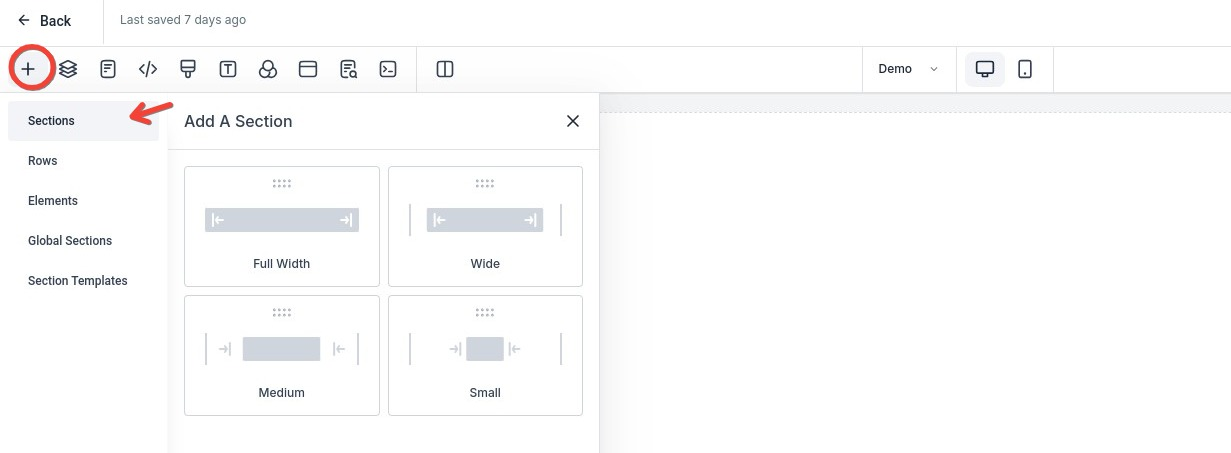
- Edit the section as needed by adding your columns, rows, and elements.
- Navigate back to Section by clicking on the layers icon, then on the section, then on the 3 dots, then on Save Section
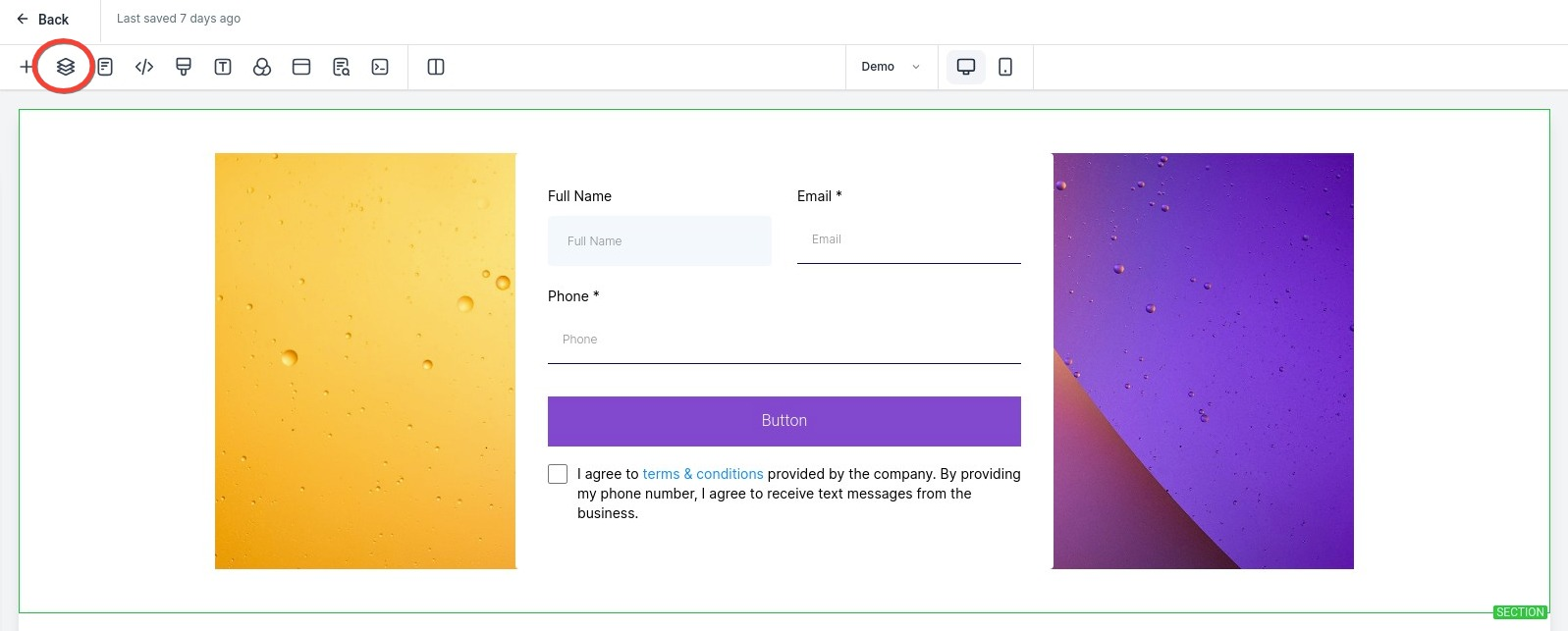
- Name the section and save it as a global section
Part 2: How To Add Your Previously Saved Global Section
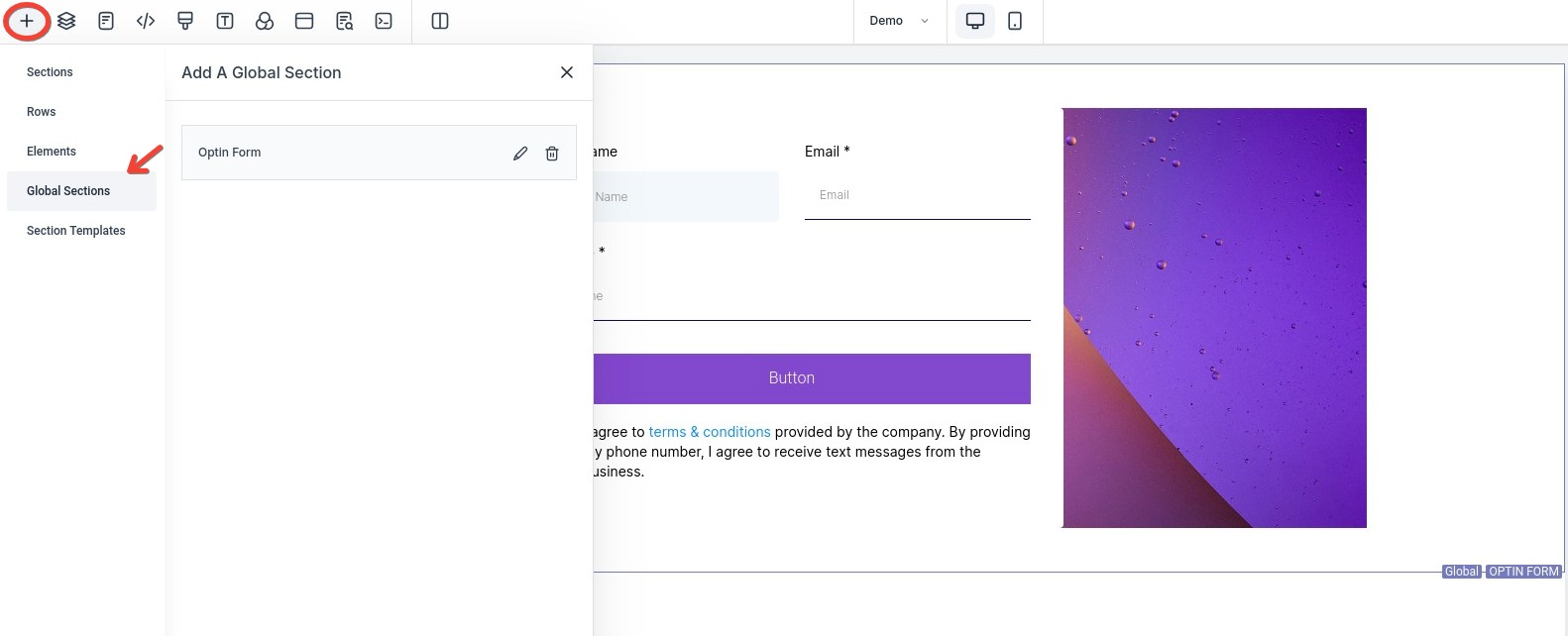
- Click on the + icon to add the Global section you just saved
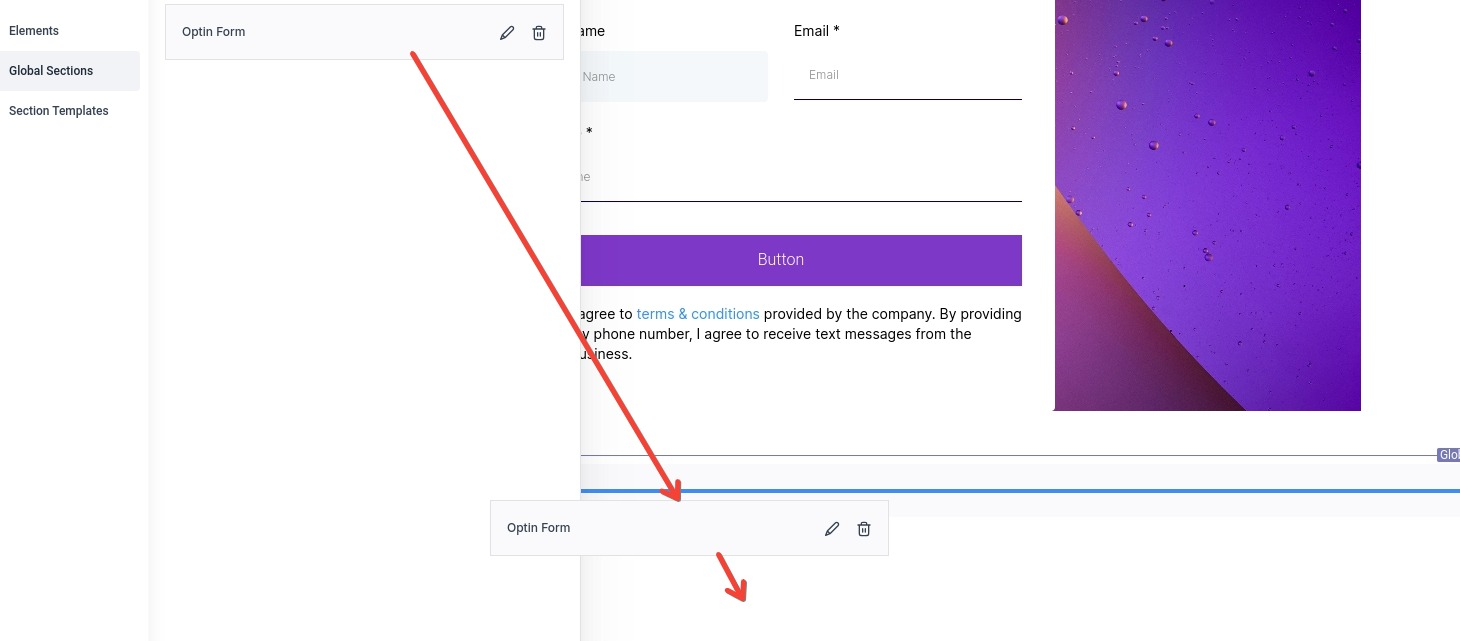
- Click, drag, and drop the global section where you need it
- Save
Note: The global section would need to be added to each page you want it to be. Any update to that section will update the global section for all pages.