

How to Integrate an iCloud Calendar
Integrating your iCloud Calendar with your CRM can streamline scheduling and event management, especially if you use Apple products extensively. This guide will walk you through the steps to set up this integration, ensuring that your iCloud Calendar events are synchronized with the CRM calendar.
Step 1: Obtain Your App-Specific Password from Apple
First and foremost, you need an app-specific password from Apple, which is different from your regular Apple ID password. Here’s how to get it:
1. Go to appleid.apple.com and sign in with your Apple ID.
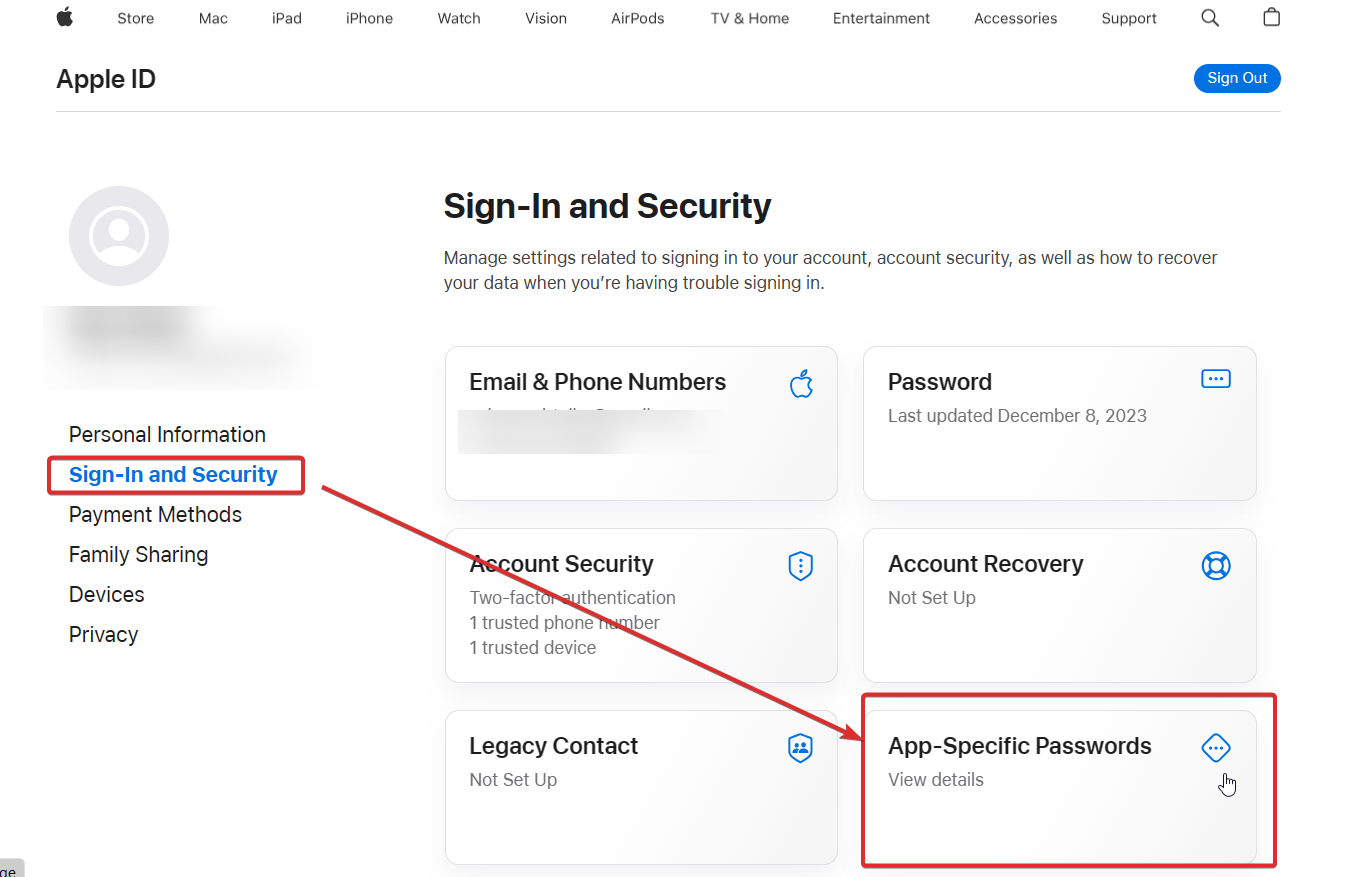
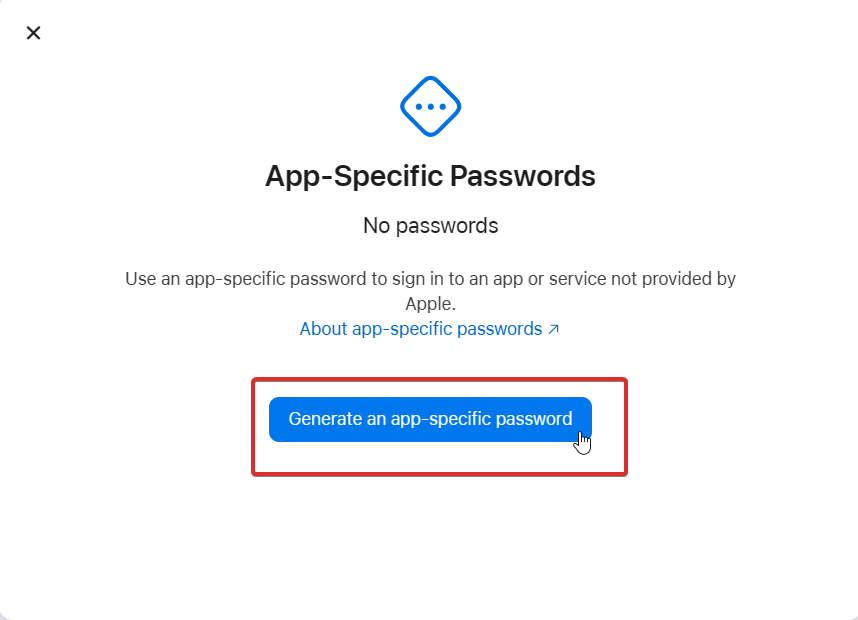
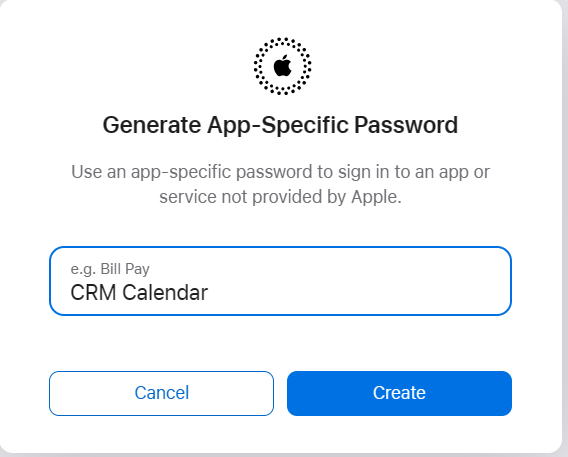
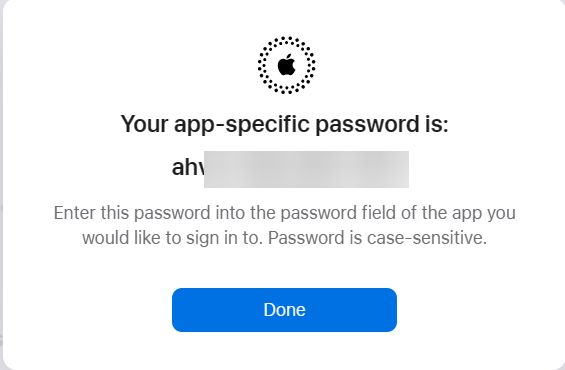
5. After creation, copy and securely store this password; you’ll need it for the integration process.
Step 2: Integrating with the CRM
Once you have your app-specific password, you can start the integration process:
1. Log in to your CRM account.
2. Navigate to ‘Settings’ and ‘My Profile’.
3. Scroll down to the ‘Integration’ section.
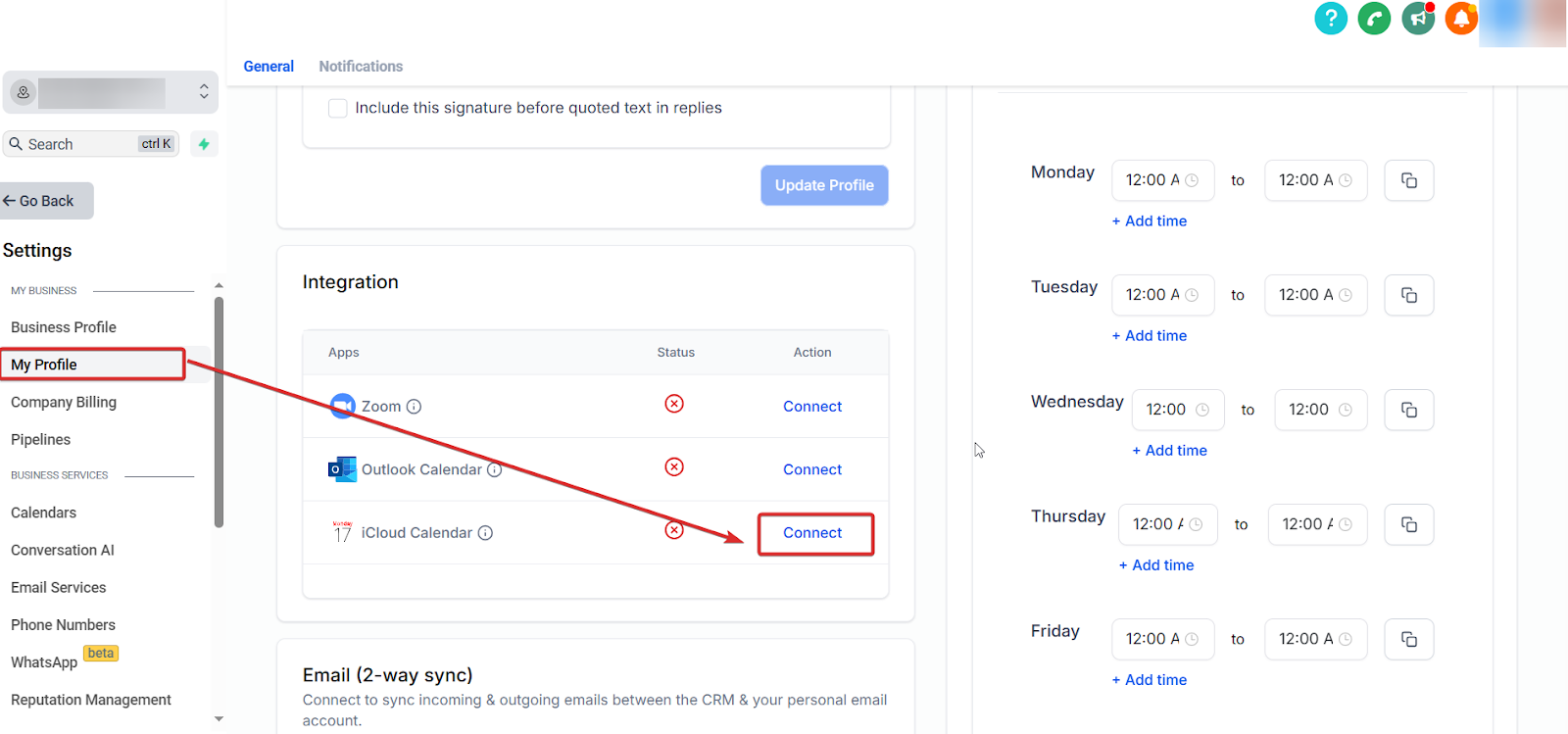
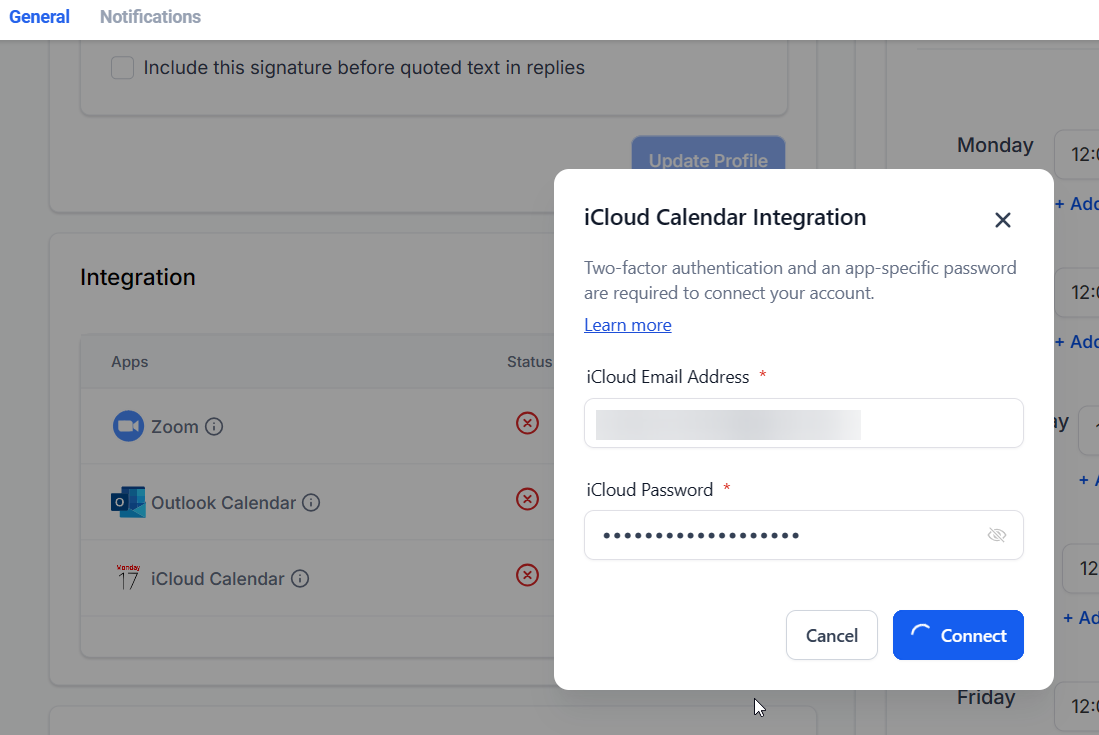
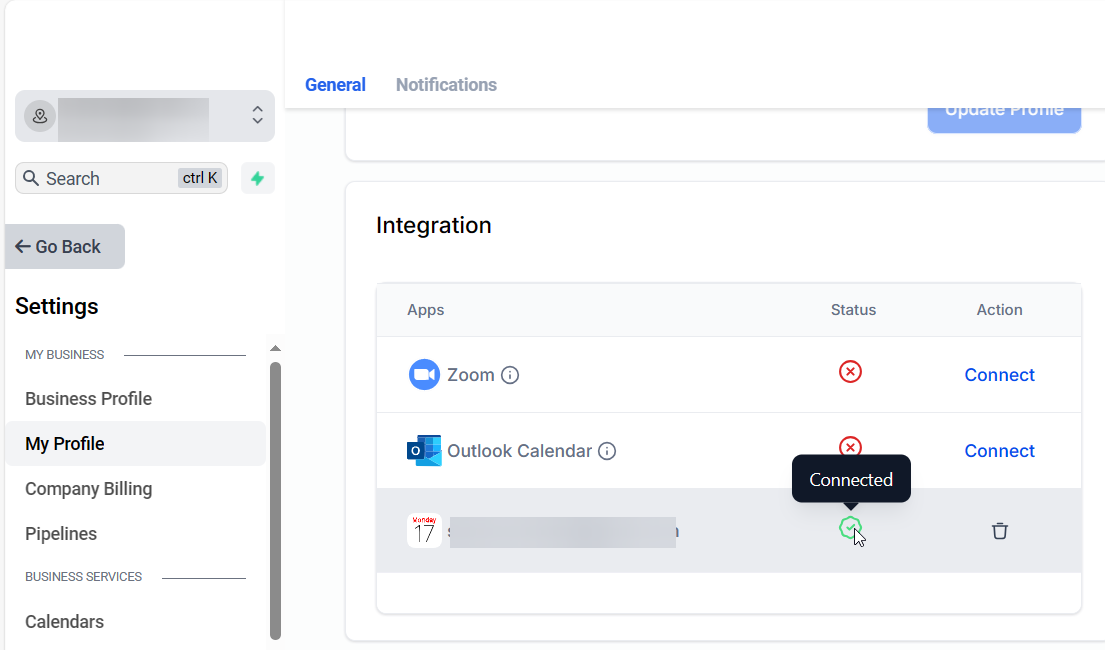
Step 3: Configuring Your Primary Calendar
After establishing the connection:
1. Go back to ‘My Profile’.
2. Under ‘Primary Calendar’, select ‘Edit’.
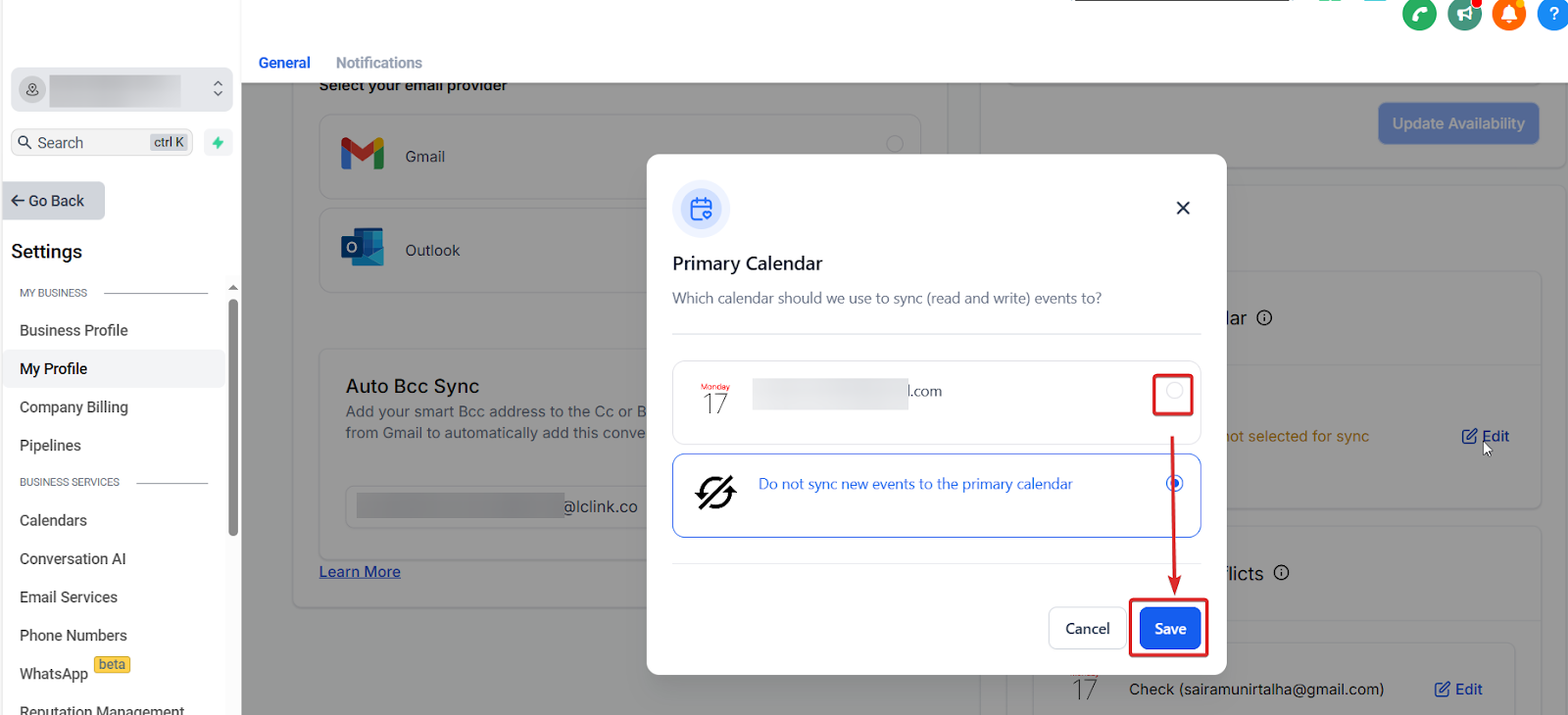
4. You may need to configure additional settings, like checking for conflicts, depending on your needs.
Important Notes
- The integration is compatible with specific CRM calendars such as class booking, round-robin, collective, and service calendars.
- Any appointments initially created in the CRM and uploaded to iCloud will have a two-way sync. This allows users to edit events in iCloud, and the changes will automatically sync with the CRM. This update eliminates the need to update events separately in the CRM.
Please Note:
- Contact creation from iCloud events in the CRM is not possible.
- If a CRM event is deleted from iCloud, it won't be deleted in the CRM app.
Integrating your iCloud Calendar with your CRM not only helps keep your schedule organized but also ensures that you're always up-to-date with your appointments and meetings. Follow these steps to integrate seamlessly and enhance your productivity.